Google Drive

Google Drive was the main app used, below is an image to visually see how it looks.😃
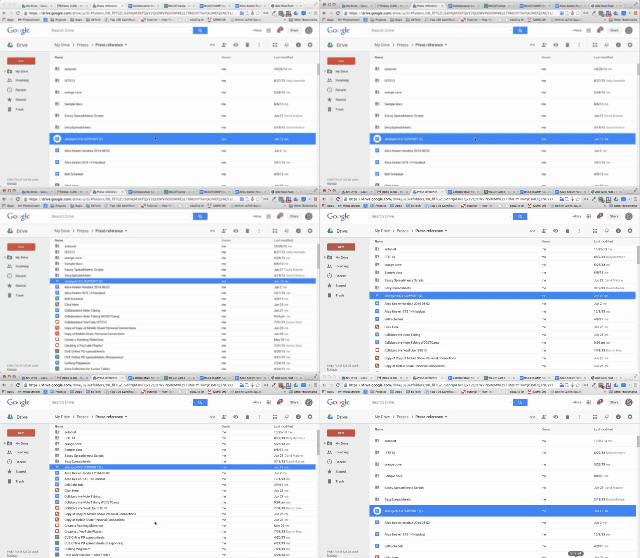
In order for one to access their google drive, you will have to
Step 1- Sign into your gmail account.
Step 2- Click the icon with the small boxes at the upper right hand corner.
.
Step 3- Click drive when the different apps option pops up.
We were introduced to google forms, google docs, google slides and google sheets.
More focused was shown on google docs and google form. It was our task to create a test for a specific grade students using google form and share it with the other classmates. A sample of my google can be seen below by clicking on the word Google Form.
The next task was to create an answer sheet from the questions being asked on google forms using google docs. Below is a sample of how google docs is lay out, followed along with my answer key.
I personally like the idea using google form to create a test as it is more flexible than using Microsoft Office Word. There are different options that I can use to create a test on google form whether its multiple choice, short answer, checklist etc without having to create boxes etc. It is also cheaper rather than having to use paper and ink to print a Quiz.
I will definitely use google form in my classroom with my students. Feel free to check out google form for yourself 😊

Comments
Post a Comment